


Version: 2.4.1 • Size: 2.25 MB • Android: 6.0+ • Developer: Activity Launcher
Activity Launcher screenshots
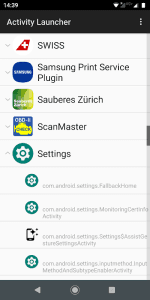
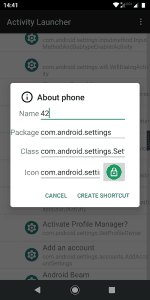
Activity Launcher lists the screens and actions that installed applications declare to Android. It can open a particular setting or create a shortcut to a section, avoiding a long chain of menus each time. The tool does not unlock anything on its own: it simply calls entry points that already exist.
An activity is not a separate app
A single package may contain dozens of activities: its main screen, a file picker, account details, internal settings and service pages. Identical names do not necessarily mean identical actions. Before creating a shortcut, launch the item once and check that it opens the intended screen.
Some entries are designed to be called only from inside their own app. They may close immediately, show a blank page or require parameters that Activity Launcher does not provide. This does not necessarily mean the phone is faulty; the developer may not allow external launches.
Start with the application name
A screen’s translated name may not appear in its code. If a normal search returns nothing, expand the relevant app and inspect its technical class names. Words such as Settings, Preferences, History, Manage and Shortcut can help distinguish a settings screen from a background component.
Before experimenting, note which package and class you launched. If the screen is useful, give its shortcut a clear name such as Notification history instead of a long dotted class name. This makes it easier to recognise later without searching the list again.
Launch restrictions protect private screens
Android restricts activities that are not exported or require a system signature or special permissions. A normal shortcut cannot bypass an access-denied message; that is part of the security model. Root access is not needed to view the list, and installing the app does not grant root access.
It is safer to inspect unfamiliar service screens without changing their settings. Some can reset data, disable a component or change network settings without the usual warning. If a switch’s purpose is unclear, use Back and leave the setting unchanged.
Check shortcuts after updates
An app developer may rename or remove an internal activity in an update. The old shortcut then stops working even though the app itself still opens normally. Remove the obsolete shortcut, refresh the package list and recreate it using the current class.
Shortcuts to stable system pages and frequently used settings are particularly useful, but they may not transfer between phone brands. Samsung, Xiaomi, Pixel and other Android variants use different packages and activity names, so a working shortcut on one device may not exist on another.