
Version 4.26.0, Android 6.0+ and 249.23 MB
- Updated: September 22, 2026
- Version: 4.26.0
- Size: 249.23 MB
- Android: 6.0+
- Developer: Flextech Inc.
Google Play data as of September 26, 2026
What update 4.26.0 brings
The update came out on September 22, 2026. Here is what the developer says:
You can now import files from Dropbox and OneDrive to TeraBox
The player layout is newly upgraded, gesture operations are more convenient, and the new incognito playback mode offers greater privacy.
Cloud folders, sync and sharing links
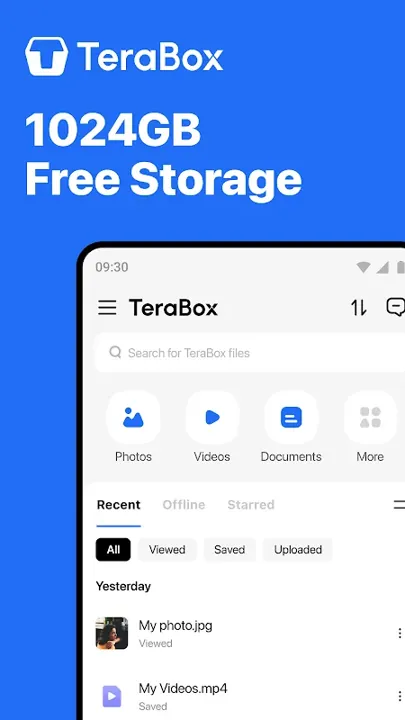
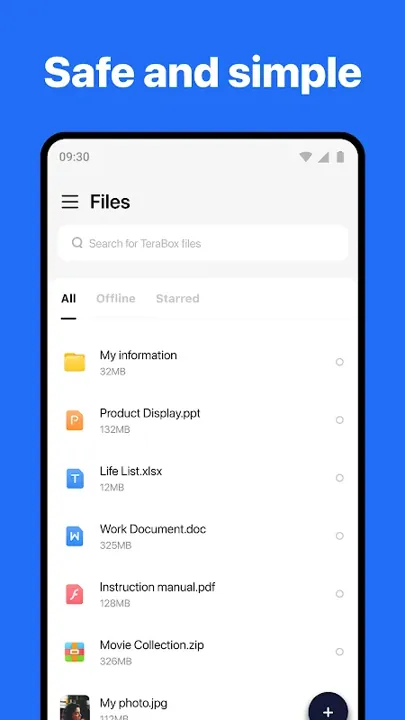
TeraBox stores photos, videos and documents in the cloud, synchronises them between devices and creates sharing links. The advertised free storage allowance looks generous, but the service’s practical value depends on upload speeds, plan restrictions and how easily files can be recovered after losing a phone.
1 TB of free space and 128 GB files
Registration gives 1024 GB of free cloud storage. A single upload can be as large as 128 GB, which covers long videos and big archives. Paid options appear as in-app purchases, listed on Google Play from $0.09 to $499.99 per item.
Intelligent albums sort photos automatically for easier browsing. The developer states that stored files are protected with advanced encryption.
A backup does not automatically free local storage
An upload confirmation means the file has reached the cloud, but its local original usually remains on the device. Before removing a local copy to free space, open the uploaded file on another device or in the web version and check that it is complete and at full resolution.
Messaging folders from apps like WhatsApp, screenshots and downloads deserve particular attention. Backing up everything automatically can fill storage with duplicates. Select a few important folders and periodically check that new files actually reach the intended location.
Configure automatic uploads carefully
Videos use far more data than photographs. Consider restricting video uploads to Wi-Fi and running the first large synchronisation while charging. Otherwise, Android may stop the app in the background or the upload may exhaust a mobile data allowance.
If the upload queue stalls, check battery-saving restrictions, background data access and available account storage. Reinstalling is not the first troubleshooting step: it may remove the local list of unfinished uploads without resolving background restrictions.
Check the risks of shared links
A shared link is useful for a large archive, but recipients can forward it. Check whether login is required, whether the link expires and whether it exposes other files in the folder. Sensitive documents are better protected in an encrypted archive, which a tool like ZArchiver can create, with the password sent through a separate channel.
Deleting the original file or changing permissions may disable an old link. If a group needs access for several weeks, test the link in a private browsing window and note when access should be closed. This checks the recipient’s experience instead of relying on the owner’s permissions.
AI tools built into the storage app
Tera AI can summarise a long PDF or pull key details out of a screenshot. AI Study turns a saved file into structured notes, quizzes, flashcards and a mind map. It can also record a lecture or meeting and take notes live.
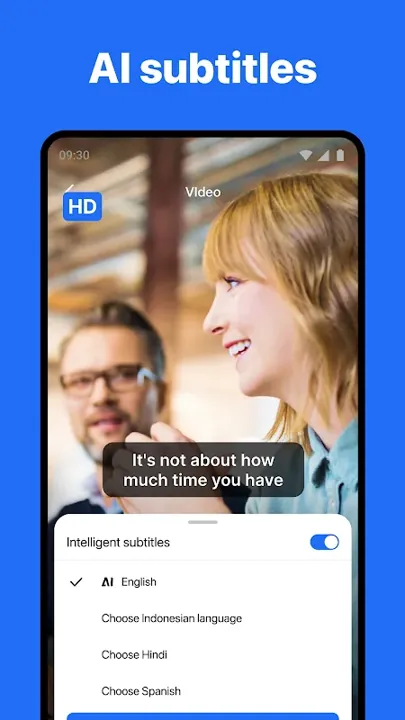
Transcription converts speech from recordings or uploaded audio and video into text. The built-in HD video player can generate subtitles automatically. There is also a document scanner that recognises text and helps edit PDFs.
These features work on the files you store, so think twice before running them on contracts or medical papers. For casual photos and lecture notes, they save a lot of manual work.
Test recovery before you need it
Treat cloud storage as a backup only after testing recovery. Download a photograph, a document and a large video to another device, then compare their size, quality and ability to open. This can reveal incomplete uploads or plan restrictions.
For important data, the 3–2–1 approach provides stronger protection: a working copy, another on an independent medium and a third off-site. TeraBox can be one layer next to a service such as Google Photos, while the password, recovery codes and access to the linked email account should remain available separately from the phone.






[…] Share installation packages only with a trusted recipient and from a known source. ShareMe delivers files but does not establish whether an APK is safe. For documents and personal photos, a direct local transfer avoids creating an additional copy in a cloud service such as TeraBox. […]